
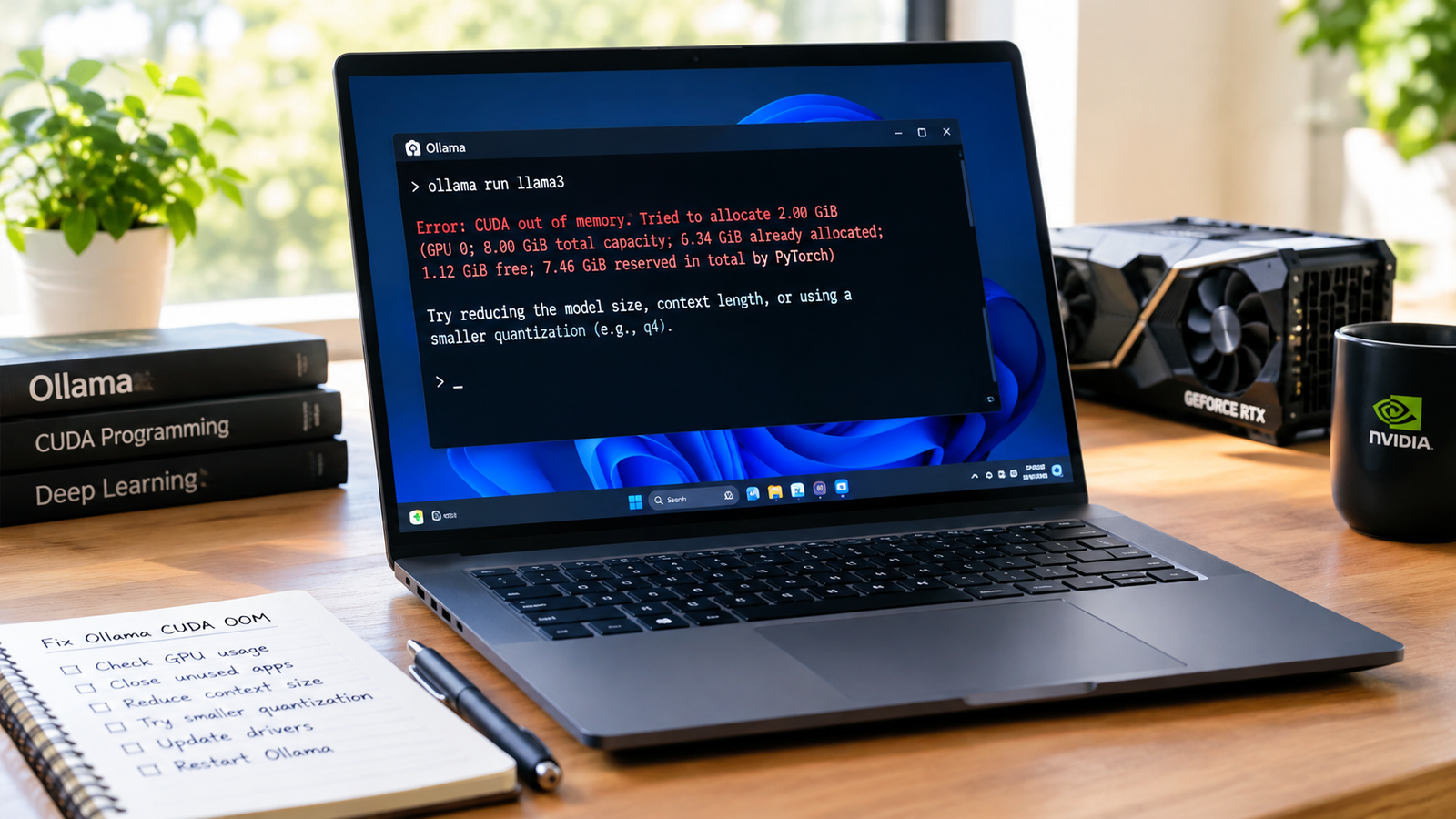
If you’re trying to fix Ollama memory errors on Windows, a CUDA out-of-memory message can be frustrating—especially when Task Manager still shows some GPU memory available.
The problem is that your NVIDIA graphics card’s VRAM is shared between several things. Ollama needs memory for the model weights, context window, KV cache, CUDA operations, Windows graphics workloads, and sometimes other applications running in the background.
The good news is that an Ollama CUDA out-of-memory error does not automatically mean you need a new GPU. In many cases, a few practical changes are enough to get the model running reliably.
This guide explains how to diagnose and fix Ollama memory errors on Windows, starting with simple checks and moving toward model, context, driver, and hardware-level solutions.
[Insert Screenshot showing a typical Ollama CUDA out-of-memory error on Windows]
What Does a CUDA Out of Memory Error Mean in Ollama?
A CUDA out-of-memory error means Ollama tried to allocate GPU memory through NVIDIA’s CUDA system, but the required allocation could not be completed.
Depending on the model and configuration, the error may contain phrases such as:
- CUDA out of memory
- failed to allocate
- out of memory
- unable to allocate
- CUDA error
- GGML CUDA error
The key detail is that a model’s file size is not the same thing as its total VRAM requirement. During inference, Ollama needs additional memory beyond the model weights.
That is why a model that appears small enough for an 8 GB GPU can still fail when you increase the context window or have other applications using VRAM.
Why Ollama Runs Out of GPU Memory
1. Model weights
The model itself is normally the largest VRAM allocation. Larger models need more memory, while quantised versions such as Q4 and Q5 generally require less memory than higher-precision versions.
If a high-precision model does not fit, switching to a smaller quantisation can make a substantial difference without requiring a completely different workflow.
2. Context size
Context size is one of the most common causes of unexpected VRAM usage. A larger context window means the inference process has to maintain more information, which increases memory requirements.
If a model works at 4K context but fails at 32K, that is a strong indication that memory pressure from the context or KV cache is contributing to the problem.
3. Windows and other applications are using VRAM
Your GPU is rarely dedicated entirely to Ollama. Windows, browsers, games, Discord, OBS, video software and other hardware-accelerated applications can reserve part of the available VRAM.
- Chrome or Microsoft Edge
- Discord
- OBS Studio
- Games and game launchers
- Photoshop or video editors
- Blender
- Stable Diffusion or ComfyUI
- Other local AI applications
4. Other AI workloads are competing for memory
Running another CUDA application at the same time can leave Ollama with much less usable VRAM than expected. This is especially noticeable on GPUs with 6 GB, 8 GB or 12 GB of VRAM.
[Insert Custom Diagram showing GPU VRAM divided between Ollama, Windows, model weights, KV cache and other applications]
How to Check Your NVIDIA GPU Memory
Before changing Ollama settings, check how much GPU memory is actually available.
On Windows, open Task Manager with Ctrl + Shift + Esc and go to Performance → GPU. Check dedicated GPU memory usage and compare it with the total capacity.
For more detailed information, open Command Prompt or PowerShell and run:
nvidia-smi
The NVIDIA-SMI output shows GPU memory usage and can also reveal which processes are consuming VRAM.
If your GPU has 8 GB of VRAM but 6.5–7 GB is already allocated before Ollama loads a model, an out-of-memory error is much more likely.
How to Fix Ollama Memory Errors on Windows
1. Close Applications Using Your GPU
Start with the simplest solution. Close applications that are consuming significant GPU memory before launching Ollama.
- Chrome and Microsoft Edge
- Discord
- OBS Studio
- Photoshop
- Premiere Pro
- DaVinci Resolve
- Blender
- ComfyUI
- Stable Diffusion
- Games
Then run nvidia-smi again and check whether memory usage has dropped.
In my experience, this simple check is worth doing before changing Ollama or model settings. It tells you whether the problem is actually Ollama or simply a crowded GPU.
2. Restart Ollama
An earlier model may still be using GPU memory. Check active Ollama models with:
ollama ps
If you no longer need a model, stop it with:
ollama stop MODEL_NAME
Replace MODEL_NAME with the actual model name shown by ollama ps.
After stopping unused models, run nvidia-smi again and test the model you want to use.
[Insert Screenshot showing ollama ps and the active model list]
3. Reduce the Model’s Context Size
If the model loads at a smaller context but fails at a larger one, reduce the context size first.
A practical testing sequence is:
4K → test
8K → test
16K → test
32K → test
Do not start with an extremely large context simply because your model supports it. If your workload only needs 4K or 8K, using a smaller context can leave considerably more VRAM available for inference.
4. Use a Smaller Quantised Model
Quantisation is one of the most useful ways to reduce model memory requirements.
- Q2
- Q3
- Q4
- Q5
- Q6
- Q8
The exact quality and memory trade-off depends on the model, but lower quantisation generally reduces memory usage.
If a Q8 or Q6 version does not fit, try a Q5 or Q4 version. For many local AI users, Q4 is a practical starting point when GPU memory is limited.
5. Choose a Smaller Model
If changing quantisation still does not solve the problem, the model may simply be too large for your GPU.
For example, someone with an 8 GB graphics card may have a much better experience with a smaller 7B–8B class model than trying to force a much larger model into limited VRAM.
The goal is not to run the biggest model available. The goal is to run the largest model that your hardware can handle consistently.
6. Check Whether Ollama Is Using Your GPU
Run nvidia-smi while Ollama is processing a request:
nvidia-smi
You should see Ollama or its associated process using GPU memory.
If GPU usage does not behave as expected, investigate NVIDIA drivers, multiple-GPU configurations, Windows graphics settings, environment variables and the Ollama installation.
[Insert Screenshot showing Ollama consuming VRAM in nvidia-smi]
7. Update Your NVIDIA Driver
An outdated or problematic NVIDIA driver can contribute to CUDA-related failures.
- Install a current compatible NVIDIA driver.
- Restart Windows.
- Run nvidia-smi and confirm the GPU is detected.
- Start Ollama.
- Test the same model again.
If your system was working previously, do not change drivers repeatedly without a reason. But when persistent CUDA problems appear, verifying the driver is current is a sensible troubleshooting step.
8. Do Not Assume All VRAM Is Available to Ollama
A 12 GB GPU does not necessarily provide Ollama with a clean 12 GB allocation.
For example:
GPU capacity: 12 GB
Windows/apps: 1.5 GB
Approx. available: 10.5 GB
Model requirement: 10.8 GB
The model can fail even though its estimated requirement appears to be below the GPU’s total capacity.
Leaving some VRAM headroom is therefore important, especially on Windows systems used for gaming, browsing and other graphics workloads.
9. Check for Multiple GPU Processes
Run:
nvidia-smi
Look at the processes section and identify applications consuming GPU memory.
python.exe
chrome.exe
Discord.exe
ollama.exe
A Python process may belong to another local AI application running in the background.
Identify the application before terminating anything. Do not blindly kill unfamiliar Windows processes.
10. Reduce the Number of Concurrent Models
Multiple active models can quickly consume available VRAM.
Check active models with:
ollama ps
If several models are running, stop the ones you do not need. This is particularly important on GPUs with 8 GB or less VRAM.
11. Be Careful With Large Context Windows
Large context windows can be useful for coding, document analysis, RAG, long conversations and local agents, but they also increase memory requirements.
If you do not need a huge context window, reducing it is often one of the fastest ways to make a borderline model stable.
Test progressively rather than jumping directly to 32K, 64K or larger contexts.
12. Use CPU Offloading When Necessary
If a model cannot fit entirely into VRAM, CPU/system RAM may allow some workloads to run with part of the computation outside the GPU.
The trade-off is performance. GPU inference is normally much faster, so heavy CPU involvement can make generation noticeably slower.
Still, for experimentation, CPU/RAM offloading can be useful when the alternative is an immediate CUDA out-of-memory failure.
13. Make Sure Your System Has Enough RAM
System RAM does not replace VRAM, but it becomes important when workloads use CPU memory or when larger local AI models are being tested.
- 16 GB RAM: workable for lighter workloads
- 32 GB RAM: a comfortable starting point for many local AI setups
- 64 GB RAM: useful for larger models and heavier experimentation
Actual requirements depend on the model, quantisation and workload.
14. Use a Custom Ollama Modelfile Carefully
Advanced users can use a Modelfile to create a reproducible model configuration.
FROM your-model-name
A custom model can then be created with:
ollama create my-model -f Modelfile
This is useful when you want to keep model behaviour and parameters consistent across tests.
Avoid copying configuration values from random forum posts without checking whether they apply to your installed Ollama version.
15. Check Your Ollama Version
An outdated Ollama installation can complicate troubleshooting. Check your version with:
ollama –version
If you’re running an older release, update Ollama and repeat the test with the same model and settings.
16. Restart Windows
A full Windows restart is still worth trying after closing GPU-heavy applications, stopping Ollama models and changing drivers.
Restarting creates a cleaner baseline and can clear GPU resources that were not released properly by an application.
A Practical Troubleshooting Workflow
When I troubleshoot an Ollama CUDA OOM error, I avoid changing several variables at the same time. A controlled sequence makes it much easier to identify the actual bottleneck.
- Run nvidia-smi and record current VRAM usage.
- Close games, browsers, Discord, OBS and other GPU-heavy applications.
- Run ollama ps and stop unused models.
- Retry the same model.
- Reduce the context size if the model still fails.
- Try a lower quantisation such as Q5 or Q4.
- Try a smaller model if necessary.
- Update NVIDIA drivers and Ollama.
- Restart Windows and test again.
- If the model still cannot fit, consider a GPU with more VRAM.
[Insert Custom Flowchart: Diagnose → Free VRAM → Stop Models → Reduce Context → Lower Quantisation → Smaller Model → Update Drivers → Test Again]
Common Ollama CUDA Errors and What They Usually Mean
| Problem | Likely Cause | First Thing to Try |
| CUDA out of memory | Not enough available VRAM | Close GPU applications |
| Model loads then crashes | Context or KV cache pressure | Reduce context |
| Model will not load | Model is too large | Use smaller quantisation |
| Works after reboot | VRAM/resource contention | Find background GPU processes |
| Performance suddenly drops | VRAM pressure or CPU offloading | Check nvidia-smi |
| Multiple models fail | GPU memory is already occupied | Stop unused models |
| Problems started after a driver change | Driver/runtime interaction | Review the driver installation |
| Small model works but large model fails | GPU memory limitation | Use a smaller model or quantisation |
What Not to Do When Fixing Ollama Memory Errors
Don’t immediately buy a new GPU
First determine what is consuming your VRAM. A browser, game, Stable Diffusion session or another AI model may be responsible.
Don’t assume model file size equals VRAM usage
The model file is only one part of the memory equation. Runtime allocations, context and the KV cache also require memory.
Don’t jump straight to enormous context windows
A 32K or 64K context may sound useful, but if your workload does not need it, you are increasing memory pressure without gaining much practical value.
Don’t change everything at once
If you change the model, quantisation, context size, driver and Ollama configuration simultaneously, you will not know which change fixed the problem.
Change one variable at a time whenever possible.
Example: Fixing an OOM Error on an 8 GB GPU
Consider a desktop with an NVIDIA GPU containing 8 GB of VRAM.
You attempt to run a relatively large model and Ollama reports a CUDA out-of-memory error.
You run:
nvidia-smi
and discover that Windows and other applications are already using around 1.5 GB.
I would approach the problem like this:
- Close Chrome, Discord and other GPU-heavy applications.
- Stop unused Ollama models.
- Restart Ollama.
- Check nvidia-smi again.
- Try a Q4 quantised version of the model.
- Start with a 4K or 8K context.
- Test inference.
- Increase the context gradually only if the model remains stable.
If the model still fails after these changes, it may simply be too large for the available VRAM.
Example: Fixing Ollama on a 12 GB GPU
A 12 GB GPU provides more headroom, but it does not eliminate memory limitations.
Suppose a model runs at 4K context but fails at 32K. That is a useful diagnostic signal.
Instead of immediately reinstalling Ollama, first reduce the context. If the model starts working again, you have identified a major part of the memory bottleneck.
A useful troubleshooting principle is simple: if changing one variable consistently changes the failure, you have probably found the bottleneck.
How Much VRAM Do You Need for Ollama?
There is no universal VRAM requirement because actual usage depends on the model, quantisation, context size and workload.
| GPU VRAM | Typical Local AI Experience |
| 4 GB | Small models and basic experimentation |
| 6 GB | Smaller quantised models |
| 8 GB | Good entry-level local AI |
| 12 GB | Comfortable for many medium-sized models |
| 16 GB | Strong enthusiast setup |
| 24 GB+ | Excellent for larger local models |
These figures are broad guidelines, not hard limits. A well-quantised model with a modest context can behave very differently from a larger model using a high context window.
Quick Command-Line Checklist
Check GPU memory
nvidia-smi
Check running Ollama models
ollama ps
Check Ollama version
ollama –version
Stop an active model
ollama stop MODEL_NAME
These commands cover a large part of basic Ollama memory troubleshooting on Windows.
Frequently Asked Questions
Why does Ollama say CUDA out of memory?
Ollama reports CUDA out of memory when the NVIDIA GPU cannot provide enough available memory for the model and its runtime requirements. Other applications, large context windows and large model sizes can all contribute.
How do I fix Ollama CUDA out of memory on Windows?
Start by checking VRAM with nvidia-smi, close applications using GPU memory, stop unused Ollama models, reduce the context size and try a smaller or more heavily quantised model.
How much VRAM does Ollama need?
There is no single requirement. Smaller quantised models can work on GPUs with limited VRAM, while larger models and large context windows can require 16 GB, 24 GB or more.
Can Ollama run when a model does not completely fit in VRAM?
Some workloads can use CPU/system RAM alongside GPU memory, although performance may be significantly slower than running the model primarily on the GPU.
Does increasing Ollama’s context size use more VRAM?
Yes. Larger context windows generally increase memory requirements because the inference process needs to maintain more contextual information.
Is 8 GB VRAM enough for Ollama?
Eight gigabytes can be useful for smaller and quantised models, but it is not enough for every model or context size. Closing background applications and using efficient quantisation can make an 8 GB GPU considerably more practical.
When Should You Upgrade Your GPU?
If you have reduced background VRAM usage, lowered the context size, tried a smaller quantisation and tested smaller models, yet the model you actually want still does not fit, your hardware may simply be the limiting factor.
At that point, a GPU with more VRAM is often a better solution than endless configuration changes.
For local AI, VRAM capacity can matter more than raw gaming performance. More VRAM gives you greater flexibility for larger models, longer contexts and more demanding AI workflows.
Final Thoughts
Ollama CUDA out-of-memory errors can look intimidating, especially when Windows appears to show available GPU memory.
In many cases, however, the solution is practical rather than complicated.
Start by checking nvidia-smi, close unnecessary GPU applications, stop unused Ollama models and reduce the context size. If the model still does not fit, try a smaller quantisation or a smaller model.
The most important habit is to troubleshoot systematically. Change one variable at a time so you can identify what actually solves the problem.
If you’re dealing with an Ollama memory error right now, check your GPU’s VRAM, model name and exact error message first. Those three details usually provide enough information to identify the next troubleshooting step.